Image Converter
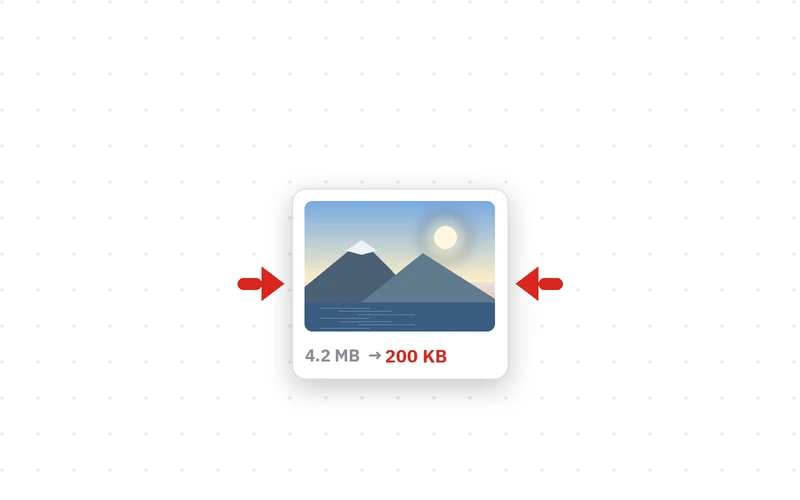
Compress Image
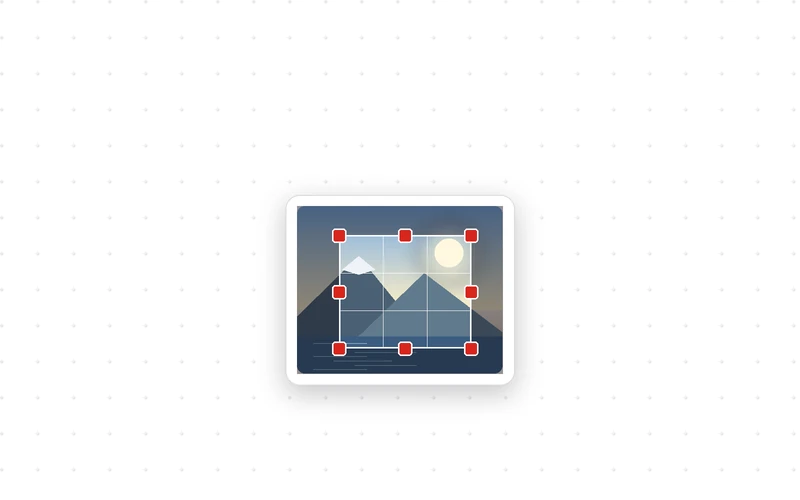
Crop Image
- No install
- No sign-up
- Batch convert
- Photos never uploaded
- No install
- No sign-up
- Hits your target size
- Photos never uploaded
- No install
- No sign-up
- Fixed aspect ratios
- Photos never uploaded
JPG, PNG and WEBP, many at once Squeeze photos down to an upload limit Drag the box over the part you want · drag & drop · Ctrl+V
🔒 Photos are converted only inside this browser on your device. Nothing is uploaded, and the converted file carries no location or camera data.
🔒 Photos are compressed only inside this browser on your device. Nothing is uploaded, and the smaller file carries no location or camera data.
🔒 Photos are cropped only inside this browser on your device. Nothing is uploaded, and the cropped file carries no location or camera data.
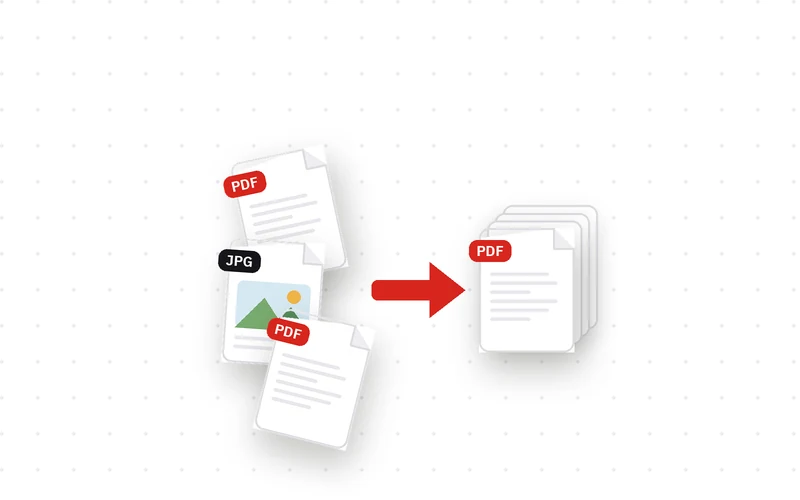
Image Converter is a free web tool that turns photos into JPG, PNG or WEBP. Convert a whole batch at once and download them as one ZIP.
How to convert an image
- Click Choose photos and pick the images. On a computer you can drag and drop them or paste with Ctrl+V, and many files at once are fine.
- Pick the format under Convert to: JPG for everyday photos, PNG to keep transparency, WEBP for the smallest files.
- Adjust Quality and Longest side if you like. For screens, 1920 px is plenty.
- Click Convert and download. A single image downloads right away; for a batch you get Download all as ZIP.
Which format should you pick
JPG is the safe default for photographs. It opens everywhere and stays small, which suits email and document attachments. It cannot hold transparency, so transparent areas are filled with white or black.
PNG is best for transparency and for images full of text, lines and flat shapes, such as screenshots and logos. Converting a photograph to PNG usually makes the file larger.
WEBP is 20–30% smaller than JPG at the same quality, which makes it ideal for websites and blogs. Every current browser reads it, but some older programs and upload forms still do not accept it.
- Type
- Image converter · Free tool
- Converts to
- JPG · PNG · WEBP
- Accepts
- JPG · PNG · WEBP · GIF · BMP · AVIF
- Batch
- Many files · one ZIP download
- Processing
- In your browser (no upload, nothing saved)
- Works on
- Desktop and mobile browsers
- Released
- 2026-09-20
- Last updated
- 2026-09-20
Good for — turning PNG screenshots into JPG attachments, making blog images lighter with WEBP, and matching the format of dozens of photos in one go.
FAQ
Is the image converter free? Do I need to install anything?
It is free. No install and no sign-up: it runs in your browser, with no limit on how many images you convert.
Are my photos uploaded to a server?
No. Images are converted only inside the browser on your device. Nothing is uploaded, so it even works offline and your photos never leave your computer or phone.
Can I convert several photos at once?
Yes. Choose or drop as many as you like and they are converted one by one. Then download a single ZIP, or grab them individually from the list.
What happens to transparency when I convert PNG to JPG?
JPG cannot store transparency, so those areas are filled with a solid color — white by default, or black if you choose. Keep PNG or WEBP if you need transparency.
Does it support iPhone HEIC photos?
Not yet. Set iPhone Settings → Camera → Formats to “Most Compatible” to shoot JPG, or share an existing HEIC photo once through a messenger to get a JPG copy.
Which quality setting should I use?
The default 90% looks essentially identical to the original. You can go down to about 80% to save more space; below that, smooth areas like skies start to show blotches.
Does it remove location data from my photos?
Yes. Converted files carry no EXIF camera or GPS data, so posting a photo will not reveal where it was taken.
Can I also make it smaller in pixels?
Yes. Pick a max long side and it is resized to fit while converting. To hit a target file size, use Compress Image.